This guide explains how to connect your OwnerRez account to Registro Parte Viajeros to synchronize bookings and automatically send guests their registration form.
Benefits of the integration
- Automatic booking synchronization: bookings are imported and changes in OwnerRez appear in Registro Parte Viajeros within minutes.
- Each booking generates a guest registration form that is sent automatically.
- Reminders on the days you choose for guests who have not completed the form.
- An email notification for you if registration is still incomplete the day before arrival.
- No need to manually include the registration link in welcome messages.
Before you start
You need a Registro Parte Viajeros account and access to OwnerRez. The setup wizard has three stages and takes just a few minutes.
1. Open Integrations
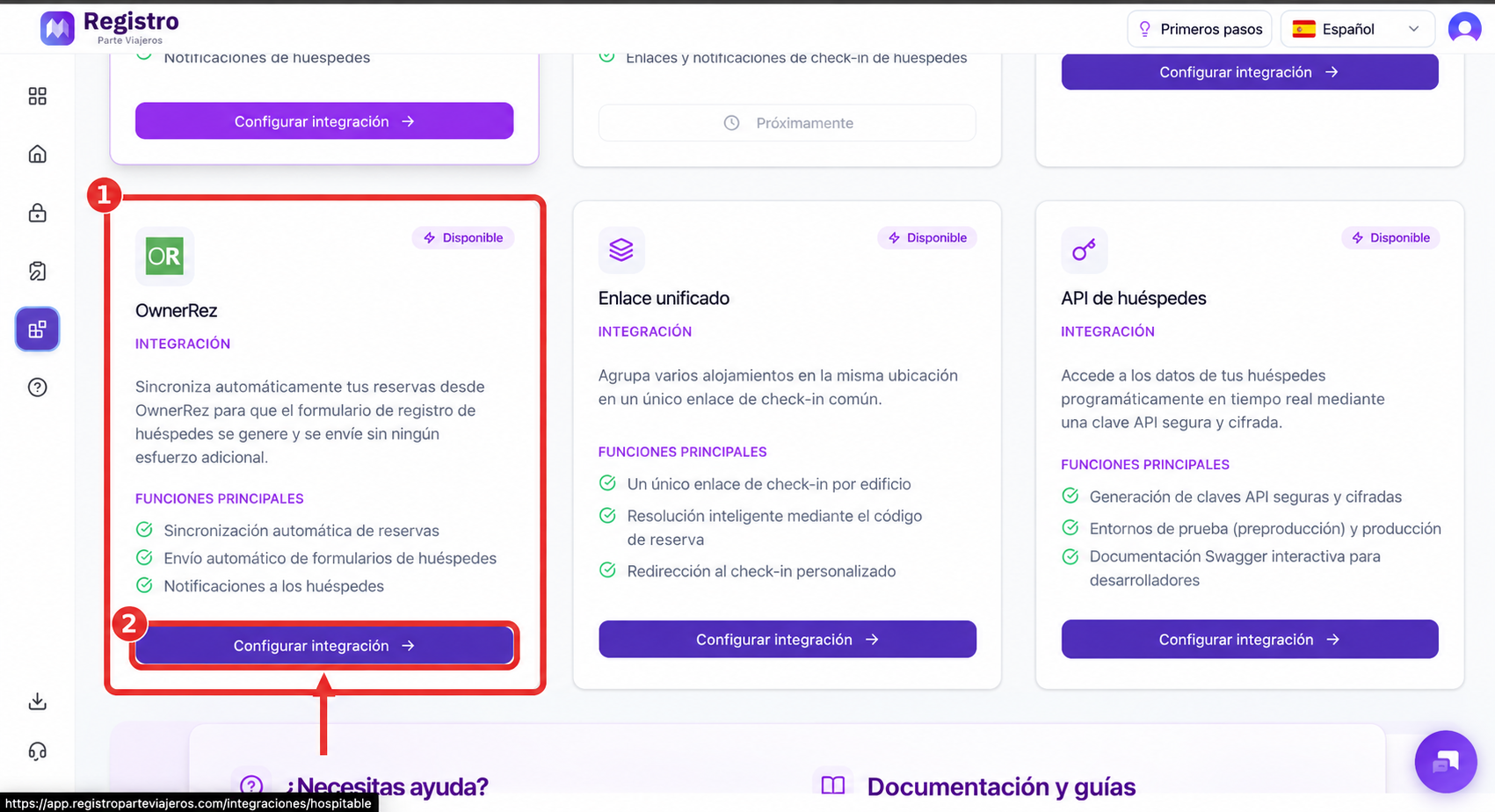
- Sign in to your Registro Parte Viajeros dashboard and select Integrations in the left menu.
2. Select OwnerRez
- Find the OwnerRez card on the integrations page.
- Click Configure integration at the bottom of the card.
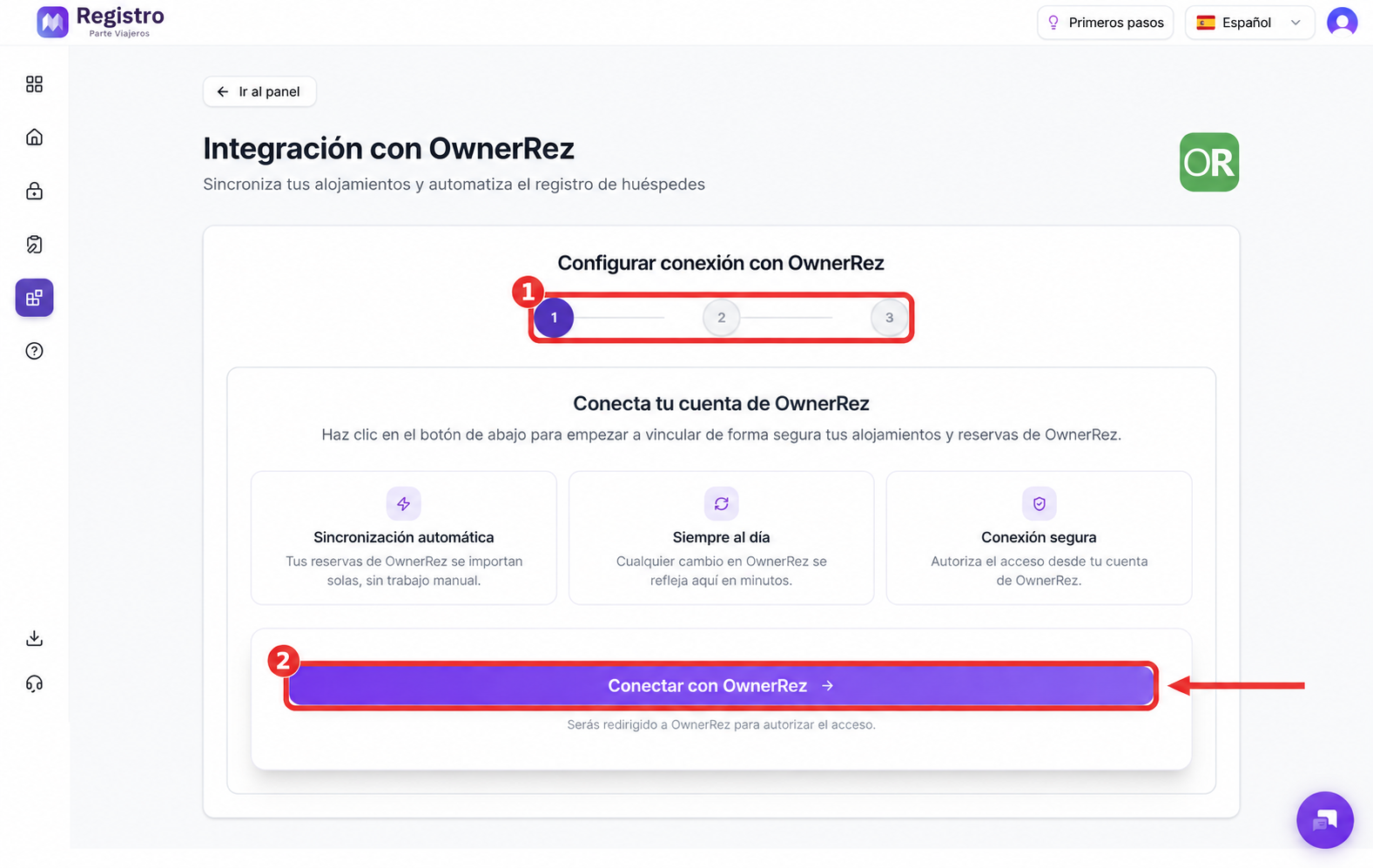
3. Connect to OwnerRez
- The wizard shows progress through three stages.
- OwnerRez opens so you can authorize access to your account.
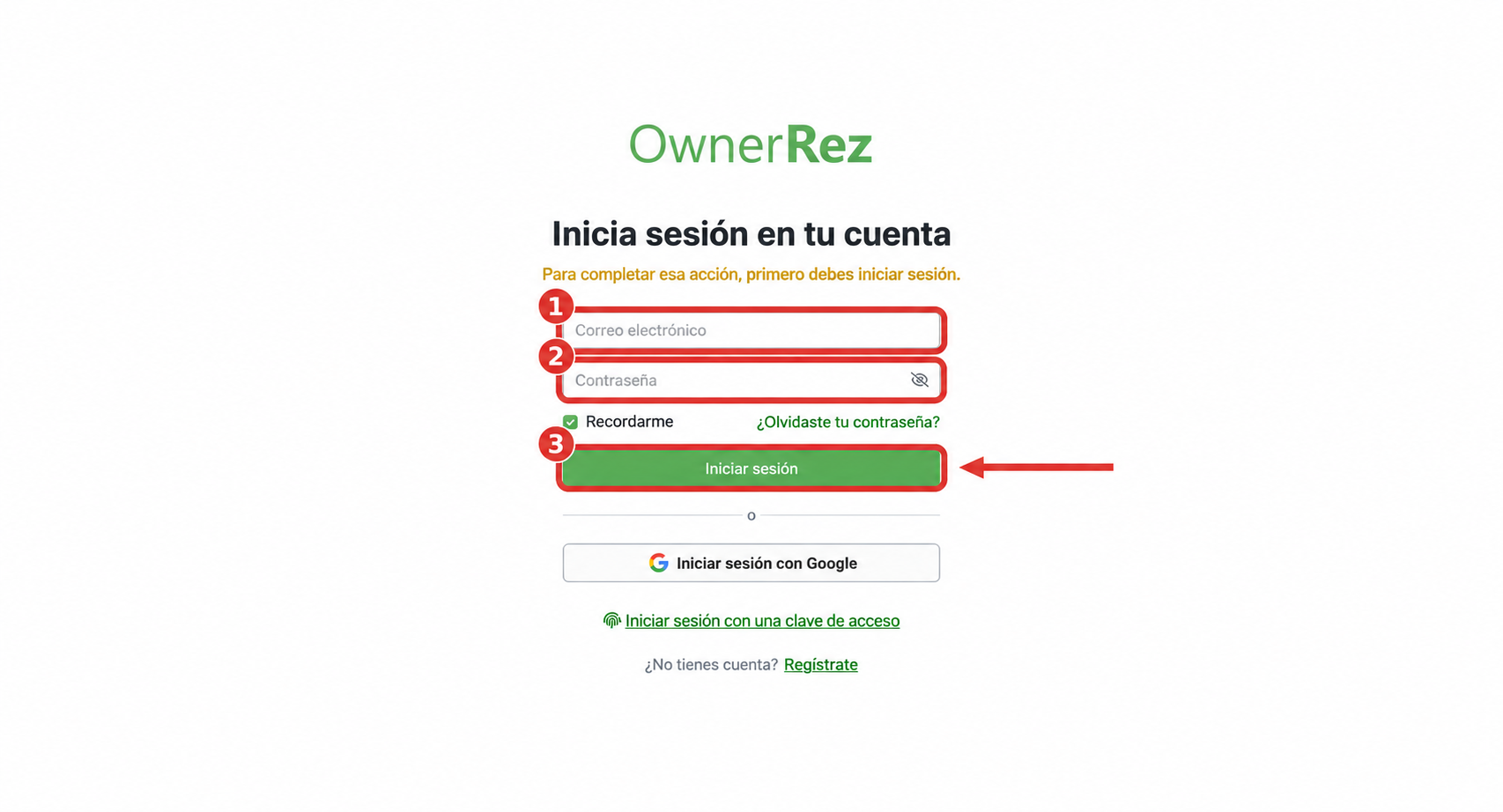
4. Sign in and authorize access
- Enter your OwnerRez email and password. You can also sign in with Google or use a passkey.
- Click Sign in and authorize Registro Parte Viajeros to access your account.
- You will return automatically to Registro Parte Viajeros.
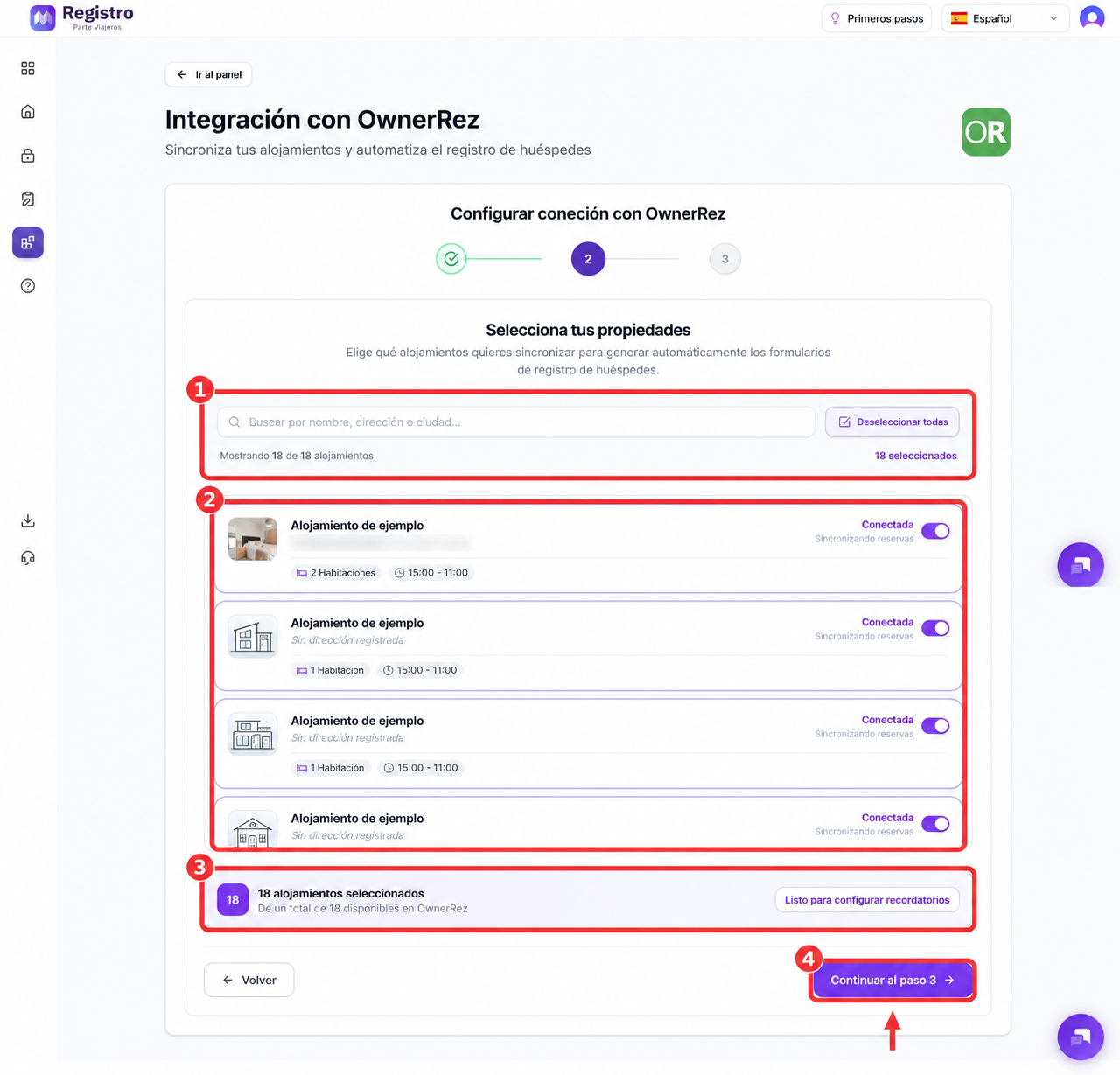
5. Select your properties
- Search for a property by name, address or city. Deselect all clears the selection.
- Enable the switch for each property you want to synchronize. Selected properties show that they are connected and synchronizing bookings.
- Check the counter to confirm the number of selected properties.
- Click Continue to step 3.
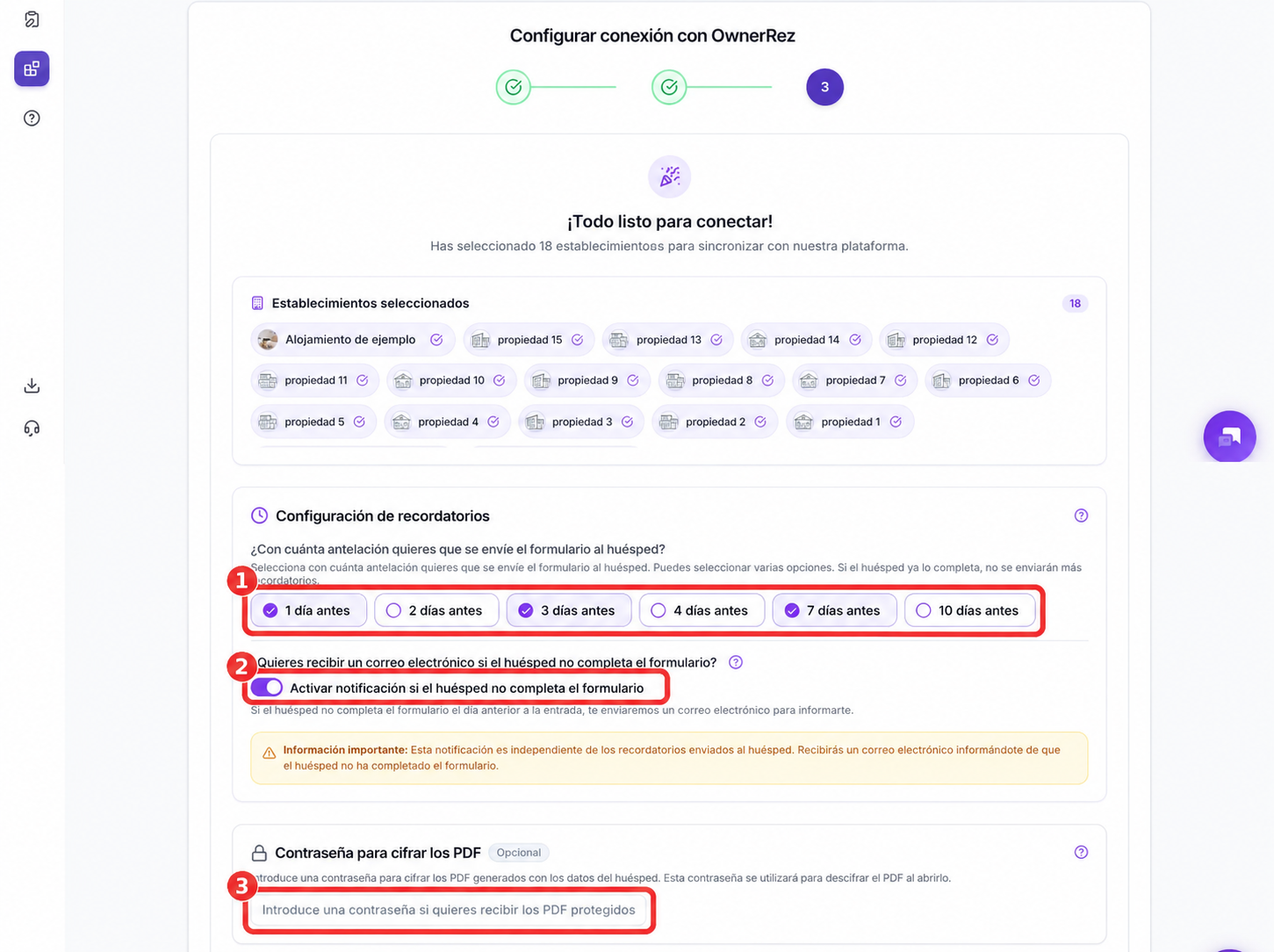
6. Configure reminders and notifications
- Choose how many days before arrival the form should be sent. You can select several options, such as 1, 3 and 7 days before arrival. Reminders stop when the guest completes the form.
- Enable email notifications if you want an alert when the form is still incomplete the day before arrival. This is separate from reminders sent to the guest.
- You can optionally add a password to encrypt PDF documents containing guest data. You will need that password to open them.
7. Customize the message and complete synchronization
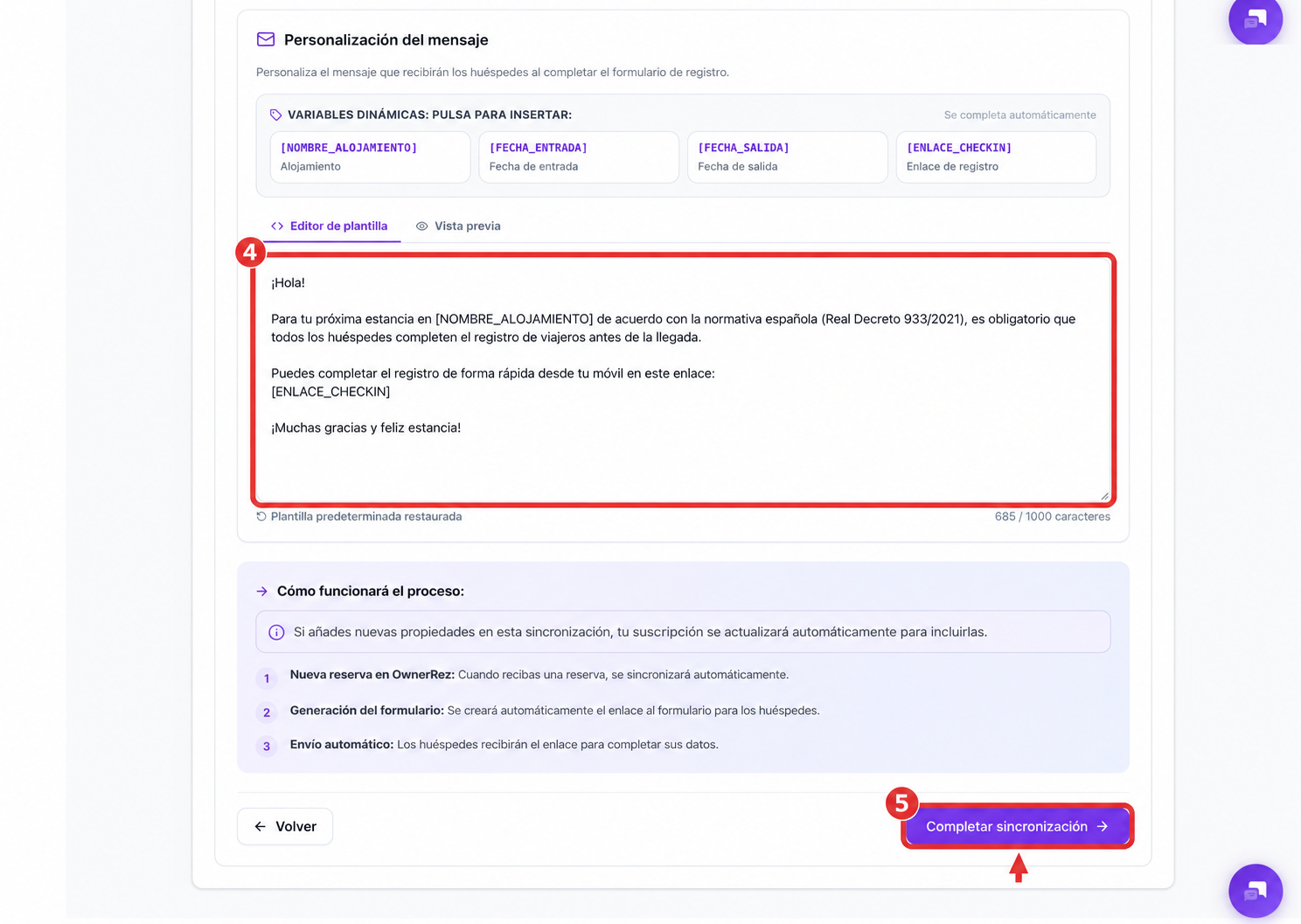
- Edit the text guests receive with their registration form.
- Click the dynamic variables to insert the property, arrival date, departure date or registration link. Check the result in the live preview.
- Review how the process works: new bookings synchronize, a form link is created and guests receive it automatically.
- Click Complete synchronization.
Tip: Keep [ENLACE_CHECKIN] in the message: this variable contains the guest registration link.
8. Check synchronization
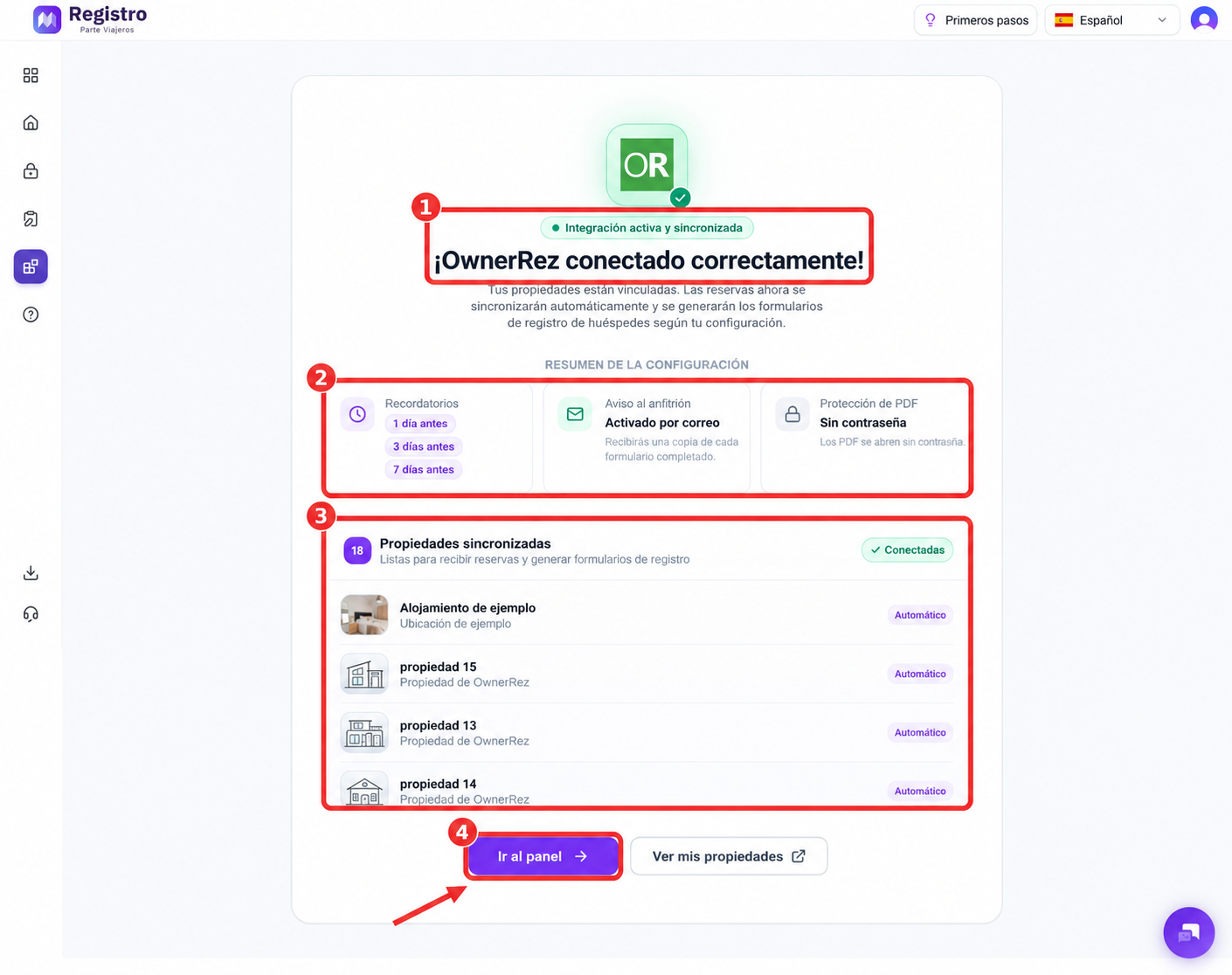
- You will see confirmation that OwnerRez is connected and the integration is active and synchronized.
- Review the reminders, host notification, PDF protection and synchronized properties.
- Click Go to dashboard to finish.
9. Enter your SES Hospedajes details
- To send guest reports to the authorities, enter your SES Hospedajes credentials in your properties: username, password, establishment code and lessor code.
Add more properties
If you add new properties in OwnerRez, you can synchronize them from its card in Integrations. Your subscription updates automatically to include them.
Need help?
Use the chat button in the lower right corner of the dashboard. Our team will help you with setup.