Let your guests let themselves in with Nuki. Connect your account and every guest receives their PIN, or an invitation to open with their phone, as soon as they complete registration: no keys, no waiting and no last-minute messages. Read the general smart lock guide.
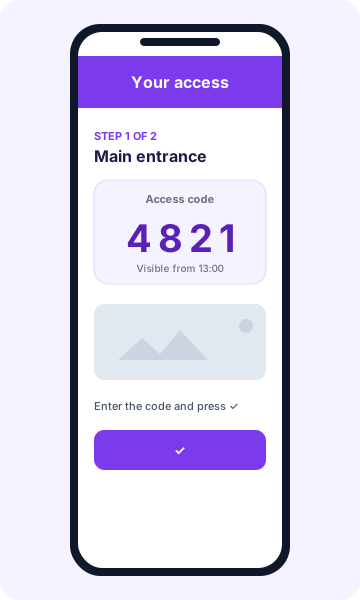
What the guest receives, by device
- Smart Lock with Keypad: a unique temporary PIN for their stay. It is programmed into the keypad and expires at the end.
- Smart Lock without Keypad: a link is sent automatically (Nuki app invitation) to their email to open the door, valid only during the stay. We use the email from the registration form; if it is missing, you can send or resend it manually from the booking.
- Opener (building entrance or intercom): uses no PIN. The guide shows the instructions you wrote for opening (doorbell, Ring to Open, continuous mode…).
It is customizable per lock: if your Smart Lock has a Keypad, the system creates the PIN; and if you prefer guests to use the app even with a keypad, you can choose app access.
Before you start
- A Nuki Web account with your devices already added (Smart Lock, Opener and, if you have one, a paired Keypad).
- A Registro Parte Viajeros account with the property created.
1. Generate the API token in Nuki Web
- Go to web.nuki.io and sign in.
- Click API in the menu.
- Under API tokens, click Generate API token.
- Name it Registro Parte Viajeros so you can recognize it later.
- Copy the full token. You will need it in the next step.
Treat the token like a password. Registro Parte Viajeros stores it encrypted and never shows it in the browser.
2. Connect Nuki on the platform
- Go to Integrations → Locks and click Add lock.
- Choose Nuki.
- Paste the token and connect. The platform lists your Nuki devices.
- Assign each device to a property. If a property has several locks, mark which one is the main one.
One property, one Nuki account. You can link several locks to the same property, but they must all belong to the same Nuki account. If you have several accounts, you can connect them all and reuse a saved one without pasting the token again.
3. Set the schedule
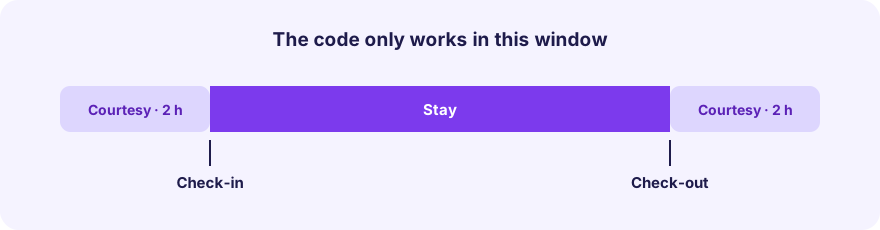
Configure for each property:
| Setting | What it does |
|---|---|
| Check-in time | When the stay starts |
| Check-out time | When the stay ends |
| Courtesy before check-in | Hours before when the PIN already works (default 2, maximum 4) |
| Courtesy after check-out | Hours after when the PIN still works (default 2, maximum 4) |
The screen shows an example with the real times the guest will see the code and when it stops working. Times are interpreted in the time zone shown on that same screen.
4. Write the access guide
For each door add a name, arrival instructions and, optionally, photos (up to 5 per step) and a YouTube video. Write in your own language: it is translated automatically for your guests. See the guest access guide.
5. Choose when the guide is sent
You can send it 15 minutes after the guest completes registration, 24 hours before check-in, 48 hours before, or on check-in day. It is never sent before registration is complete.
Fully automatic, no work on your side
- Every new booking gets its access ready for the stay dates.
- If dates change or the booking is cancelled, access is updated or removed on its own.
- Guests only see the code when it is ready and within their access window.
Common problems
- The guest cannot see the code: check that every guest’s registration is complete and that their access window has started.
- Smart Lock with no code: without a Keypad, access is by app invitation, not by PIN.
- Connection error: check that the token was copied in full and has not been revoked in Nuki Web.
- I cannot see my device: confirm it is added to the Nuki account the token belongs to.
- Unlinking: the device stays in your Nuki account; it is only detached from the property, and existing codes are not deleted on their own.