What is synchronization used for?
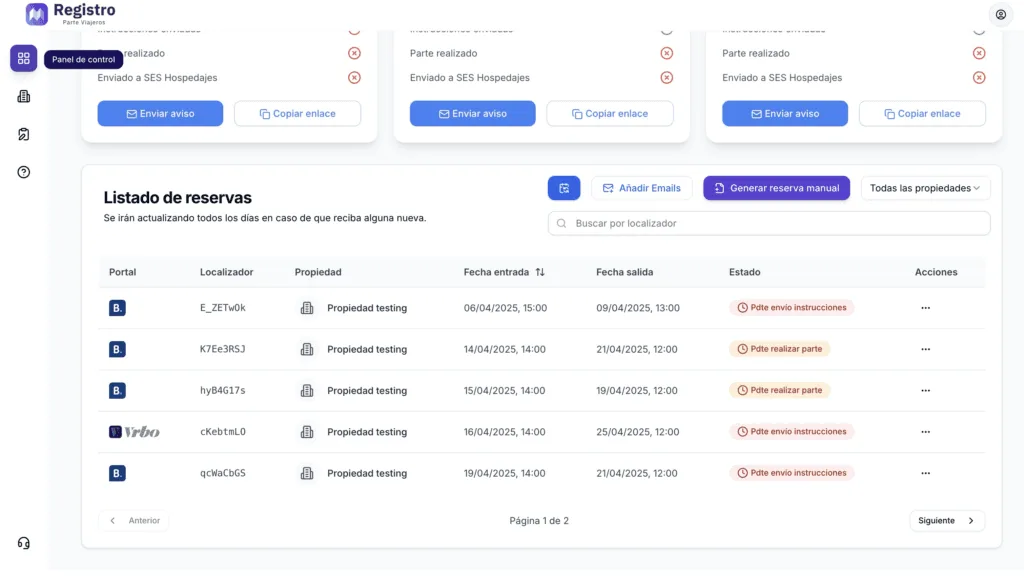
Within the control panel, you will be able to see your various reservations. They will be created automatically.
Step 1: Schedule and prices
In order to transfer all reservations from the Booking.com calendar, we must log in to the Booking.com extranet.
You can access it via this link: https://admin.booking.com/?lang=es
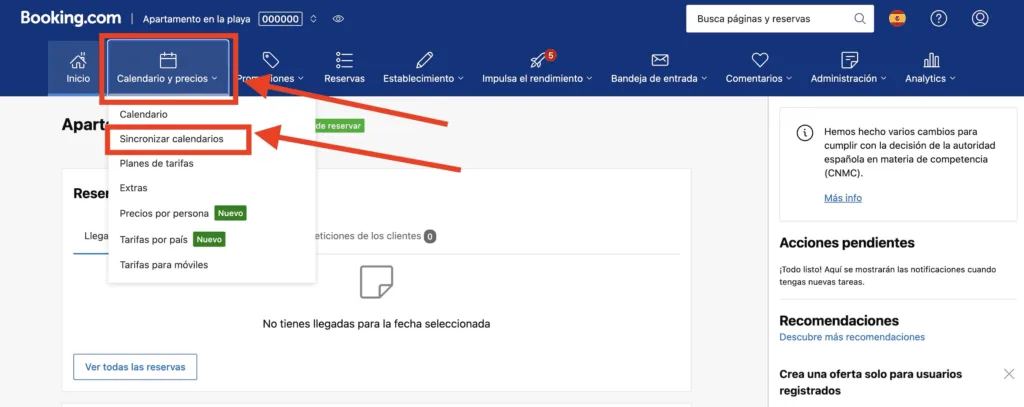
Once inside, you must select your property and then click on “Calendar and prices.”
A drop-down menu will appear. Click on “Synchronize calendars.”
Step 2: Add calendar
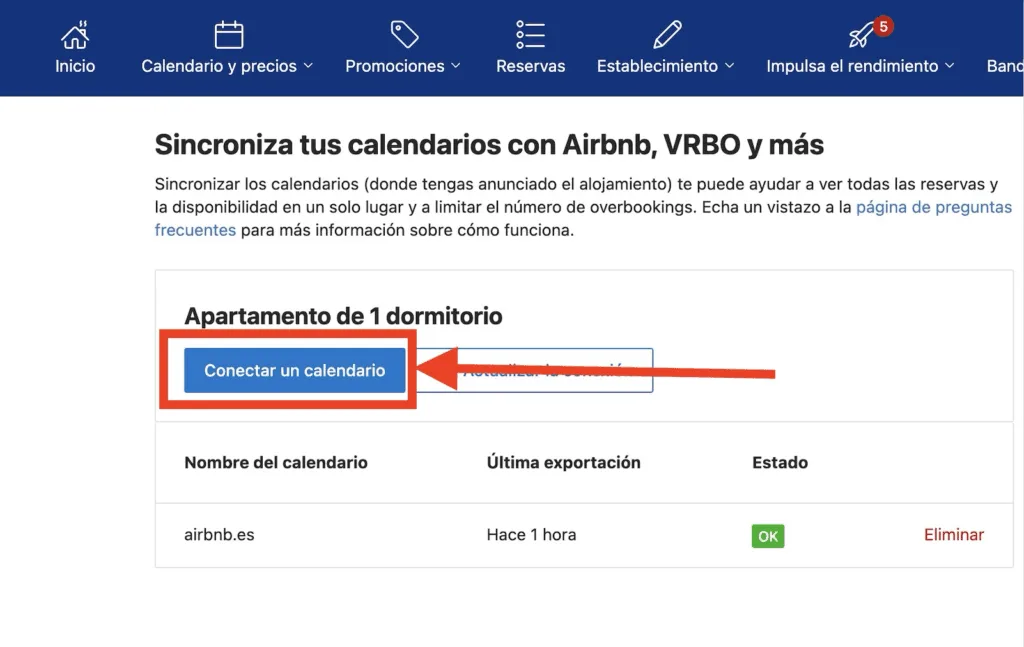
Once you are in the calendar synchronization section, click on the “Connect a calendar” button.
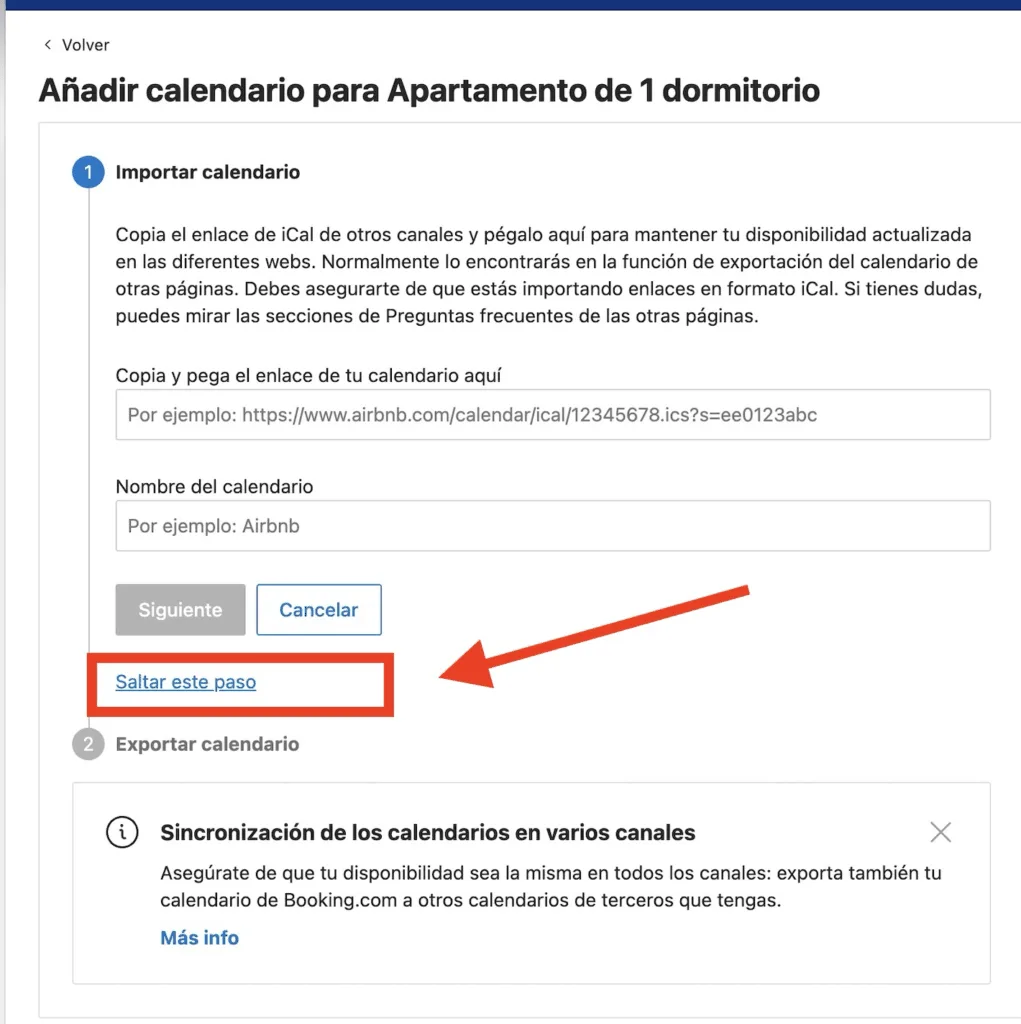
You must click on “Skip this step” for the first option.
The system will then ask you for the name of the calendar connection.
To do this, enter a name, for example registroparteviajeros.com
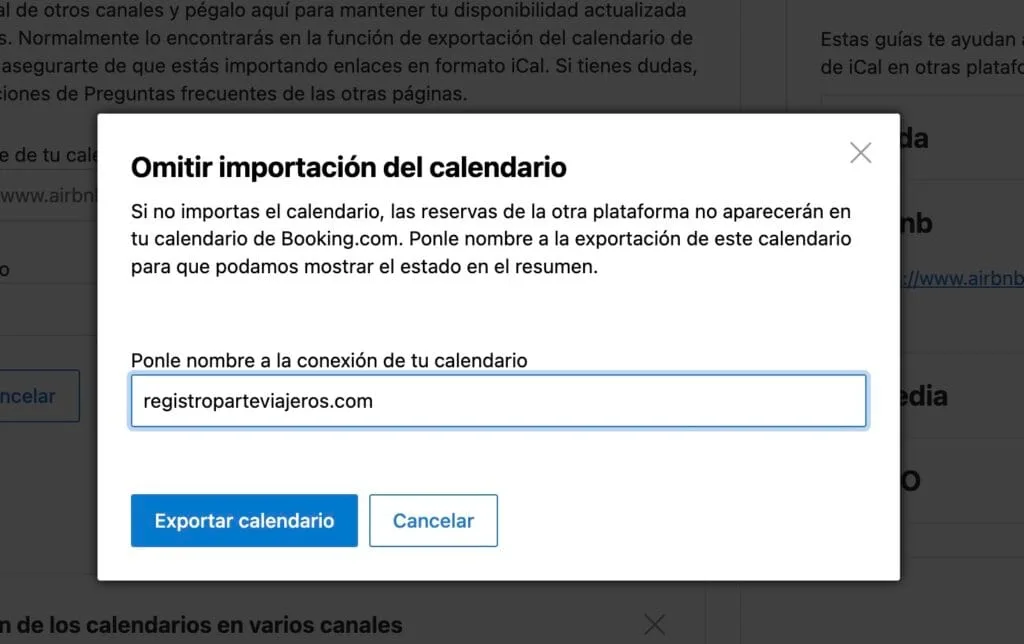
Click on export calendar and copy the link that appears.
Next, go to the platform at registroparteviajeros.com
Step 3: Enter calendar in registroparteviajeros.com
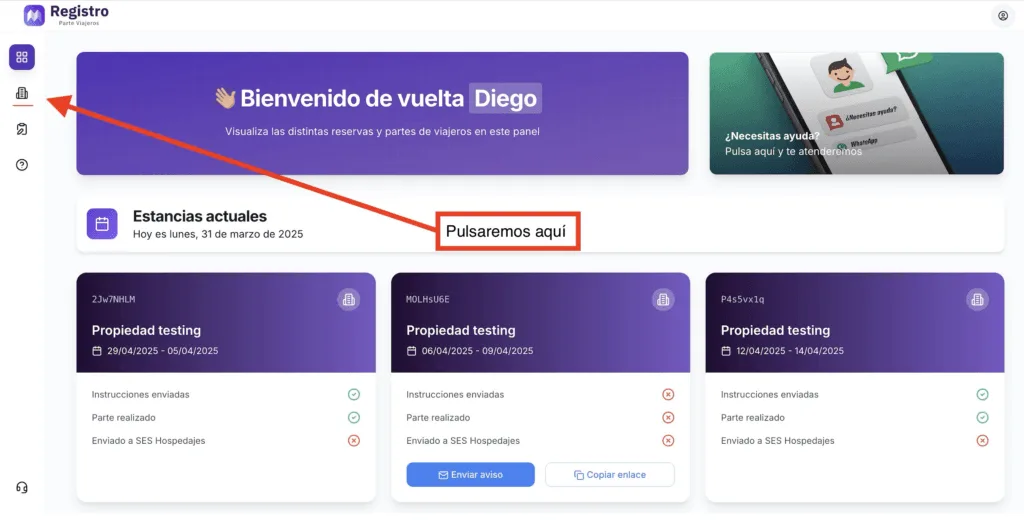
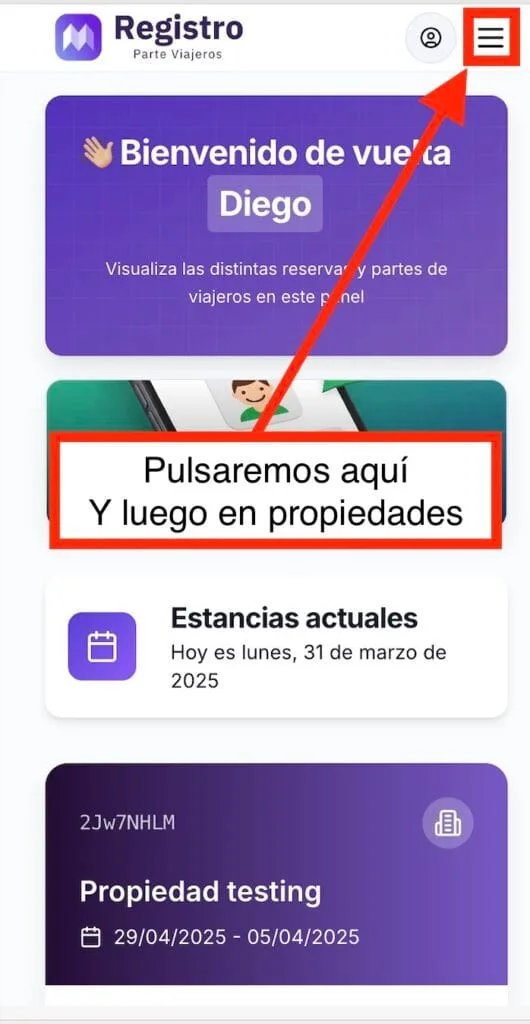
If we are on a mobile device:
Then click on edit property.
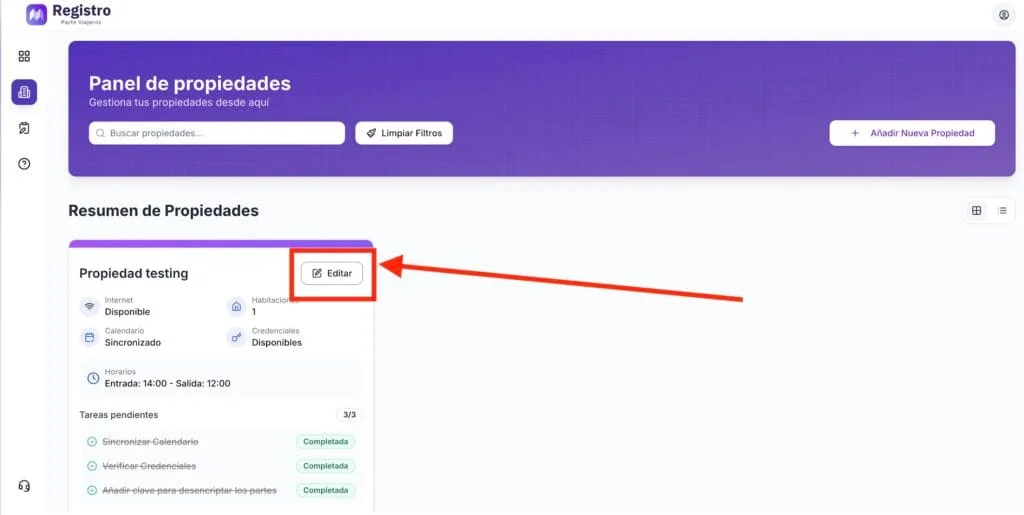
If we are on a mobile device:
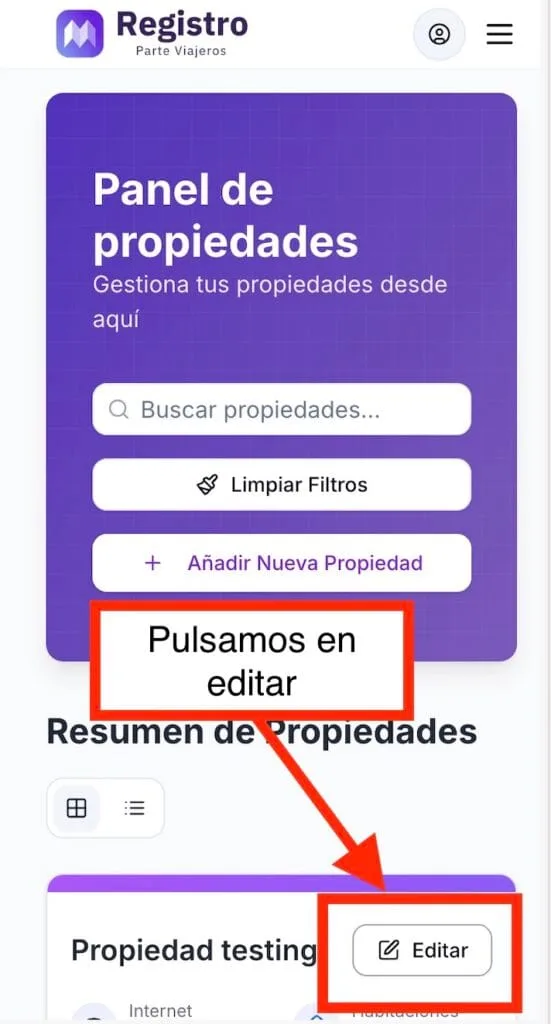
A drop-down menu will appear. Click on calendar:
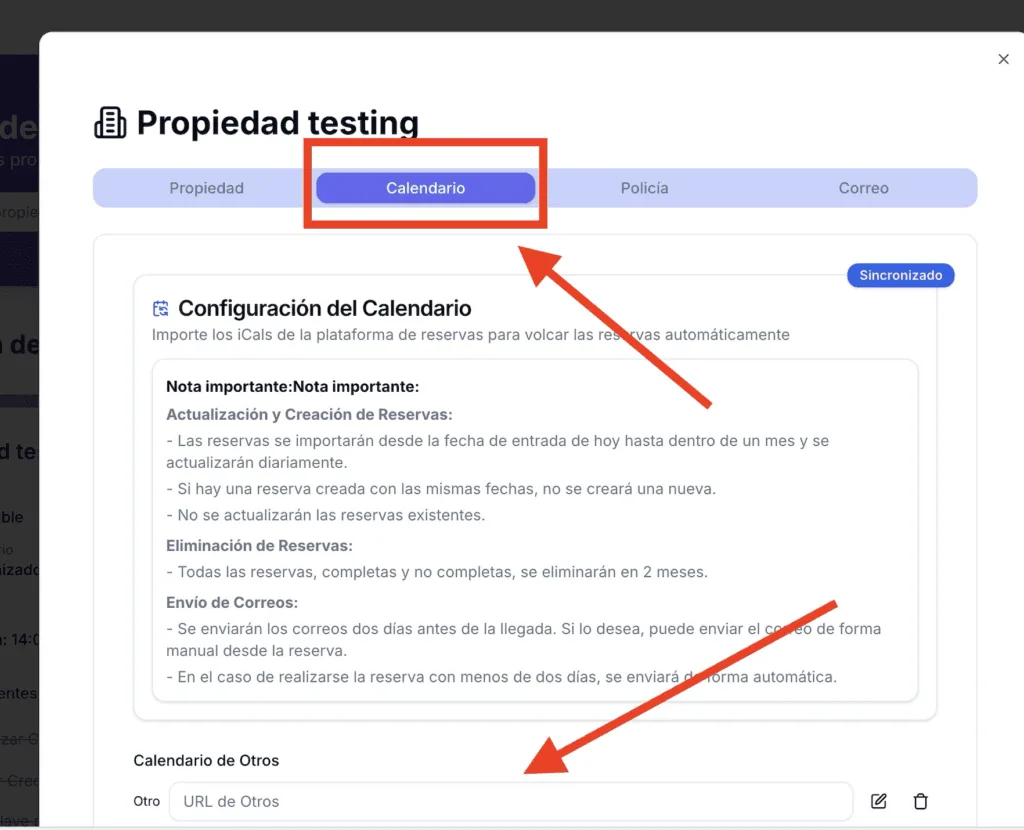
In the section labeled “Other Calendars,” paste the calendar link and click Save Changes.
Congratulations! Your calendar is now set up and reservations will be automatically transferred.
If you want to synchronize your Airbnb calendar, you can follow this link: